AI Assistant
Installation
- To begin, install and activate the Hub AI Assistant Plugin from your packages manually.
- Next, navigate to WP Dashboard > Hub AI Assistant
Settings and Usage
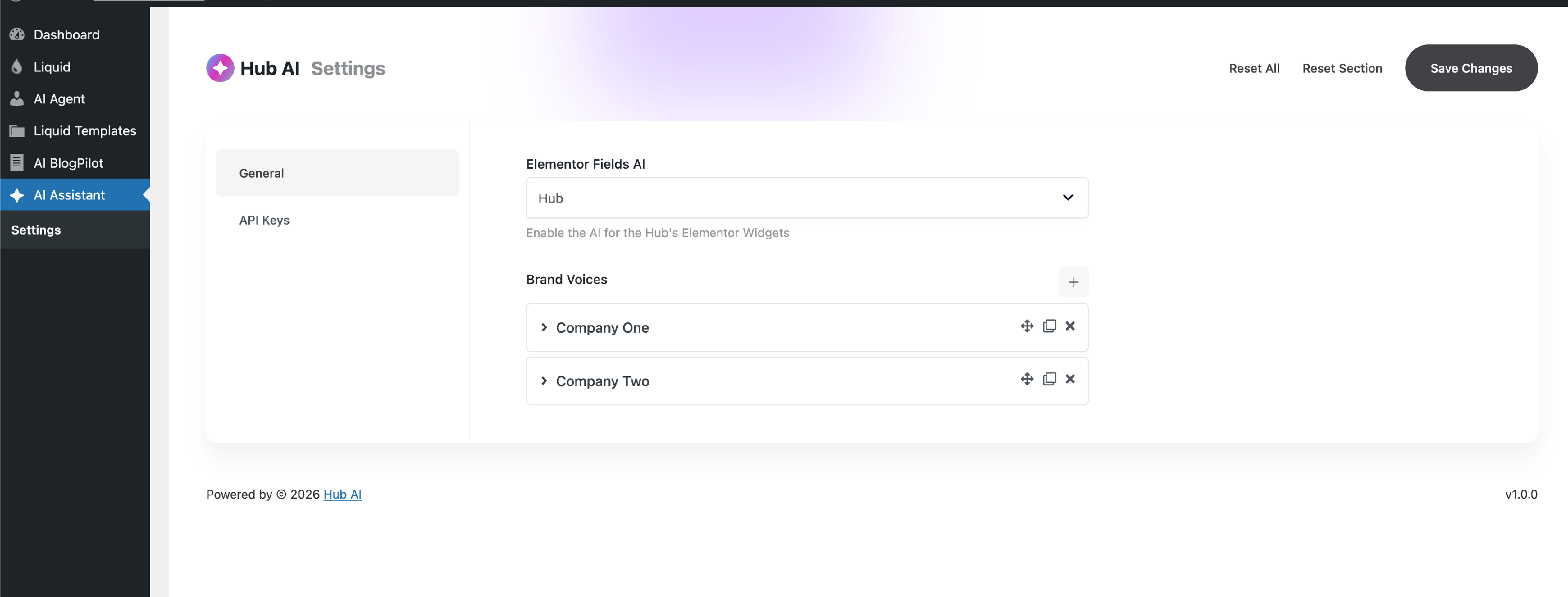
- Then, proceed to WP Dashboard > Hub AI Assistant > Settings
- Elementor Fields AI: Here, you can select HUB AI's behaviors in Elementor widgets.
-
Brand Voices: Define a brand voice in order to enable the AI to generate content about your products based on the defined brand voice. For more information, refer to the image below:
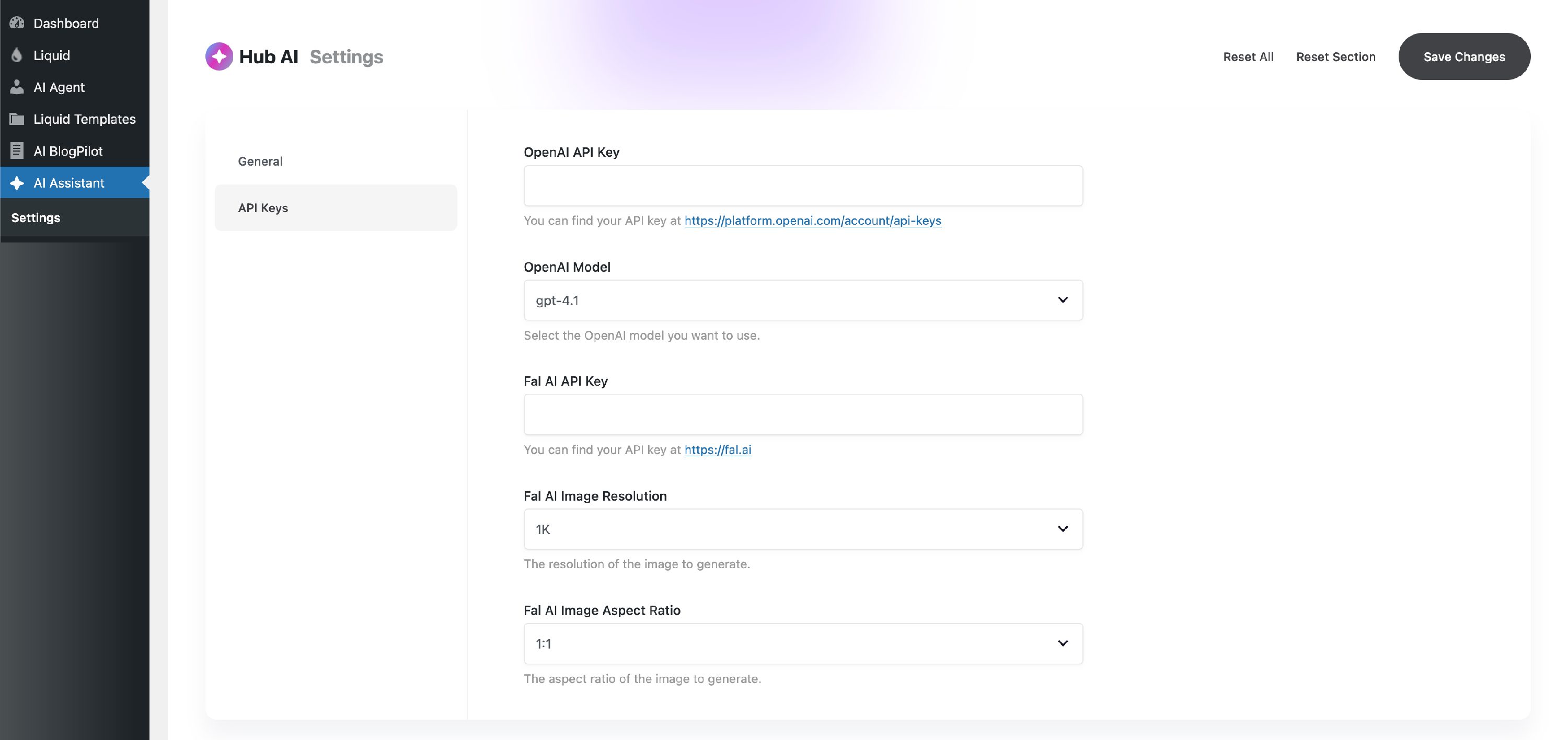
- Afterward, go to WP Dashboard > Hub AI Assistant > Settings > API Keys
Content Modal
The content modal enables the creation of textual content. If desired, users can generate content from scratch by providing a prompt in the designated field, or alternatively, make swift updates to selected content using quick actions.
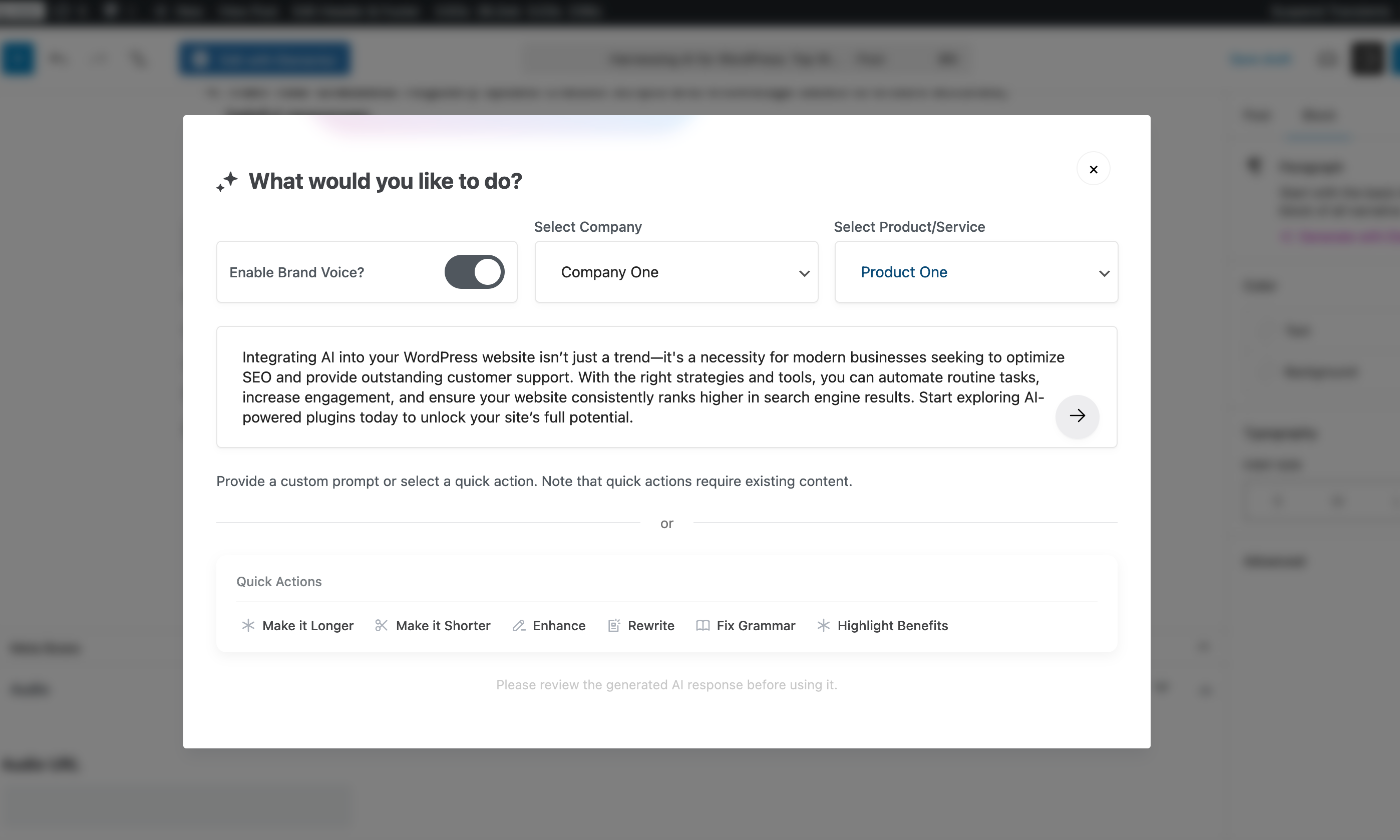
Block Editor
Click the HUB AI Assistant button to enhance the AI Content Modal.
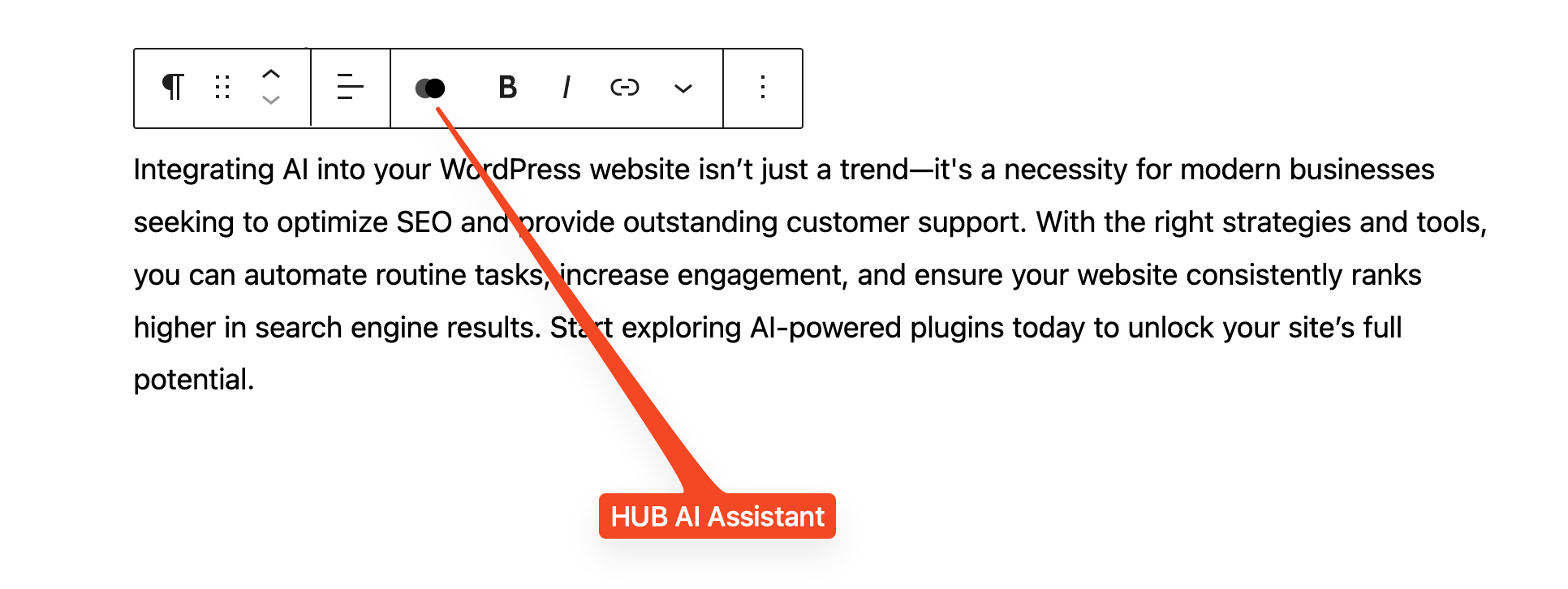
Classic Editor
To utilize the HUB AI Assistant, first select the text and then click the button to enhance the AI Content Modal.
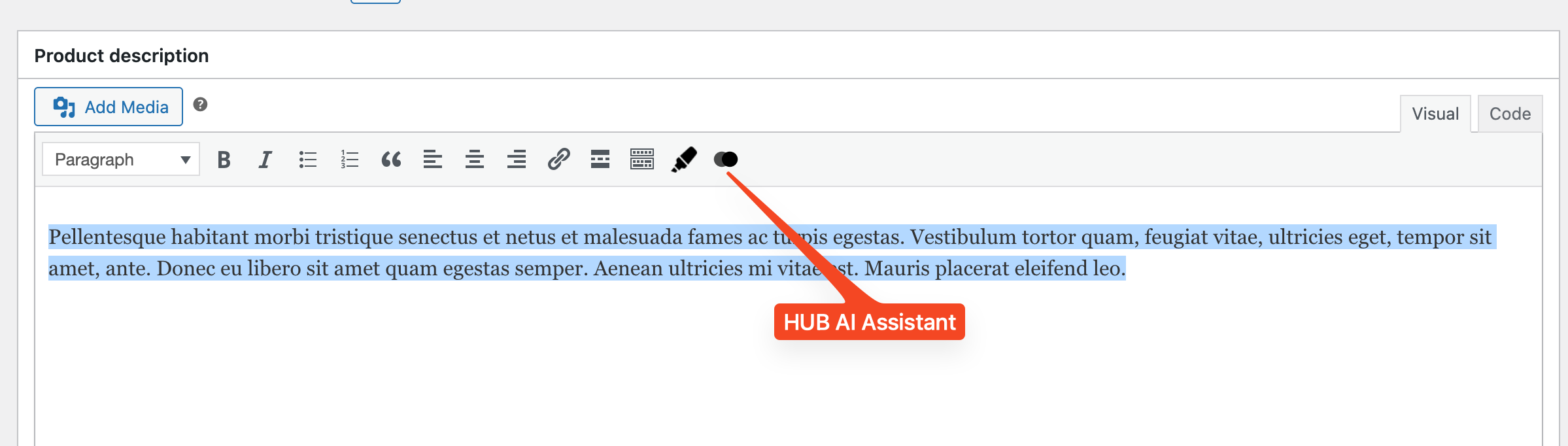
Elementor Editor
To access the AI Assistant in the Elementor Editor, edit the page using Elementor and click on any Liquid Widget. If the Liquid Widget supports the HUB AI, the AI Assistant button will be visible.
Note: It is recommended to enable HUB AI from the WP Dashboard by navigating to HUB AI Assistant > Settings > Elementor Fields AI option, and setting it to 'Hub' or 'Both'.
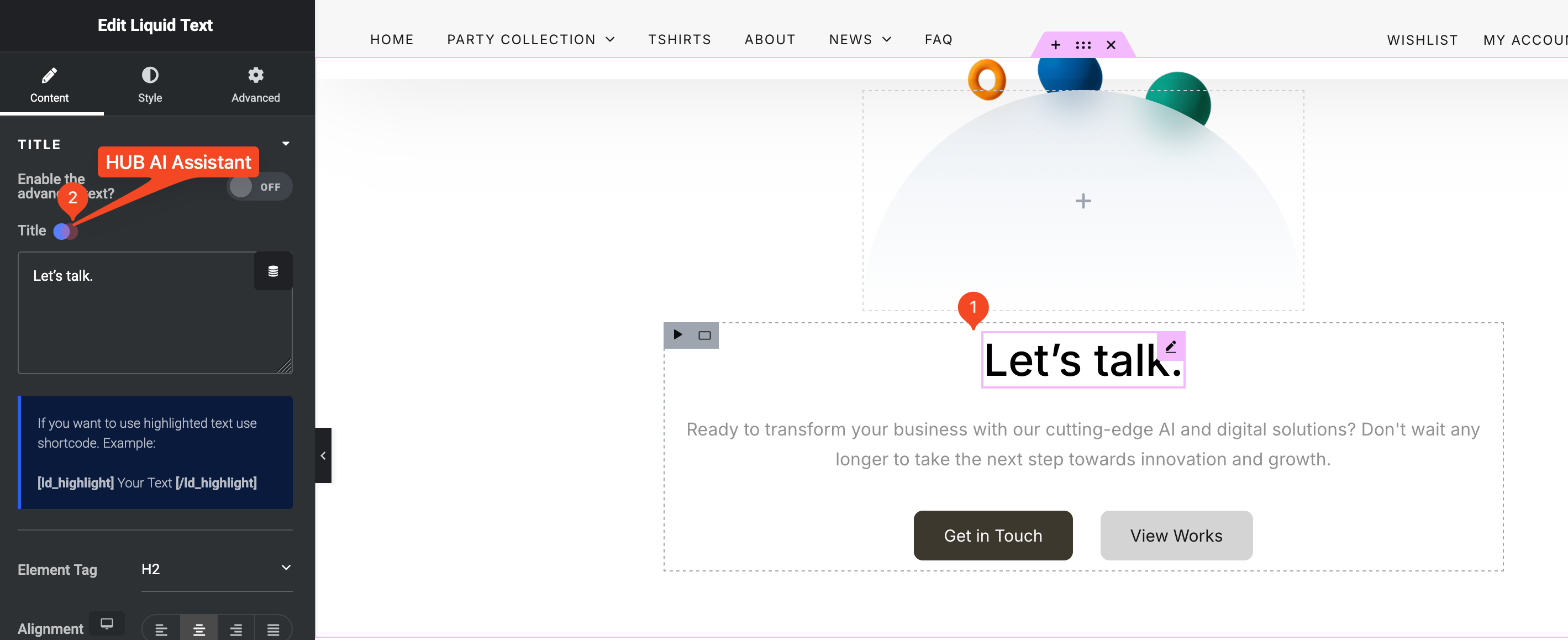
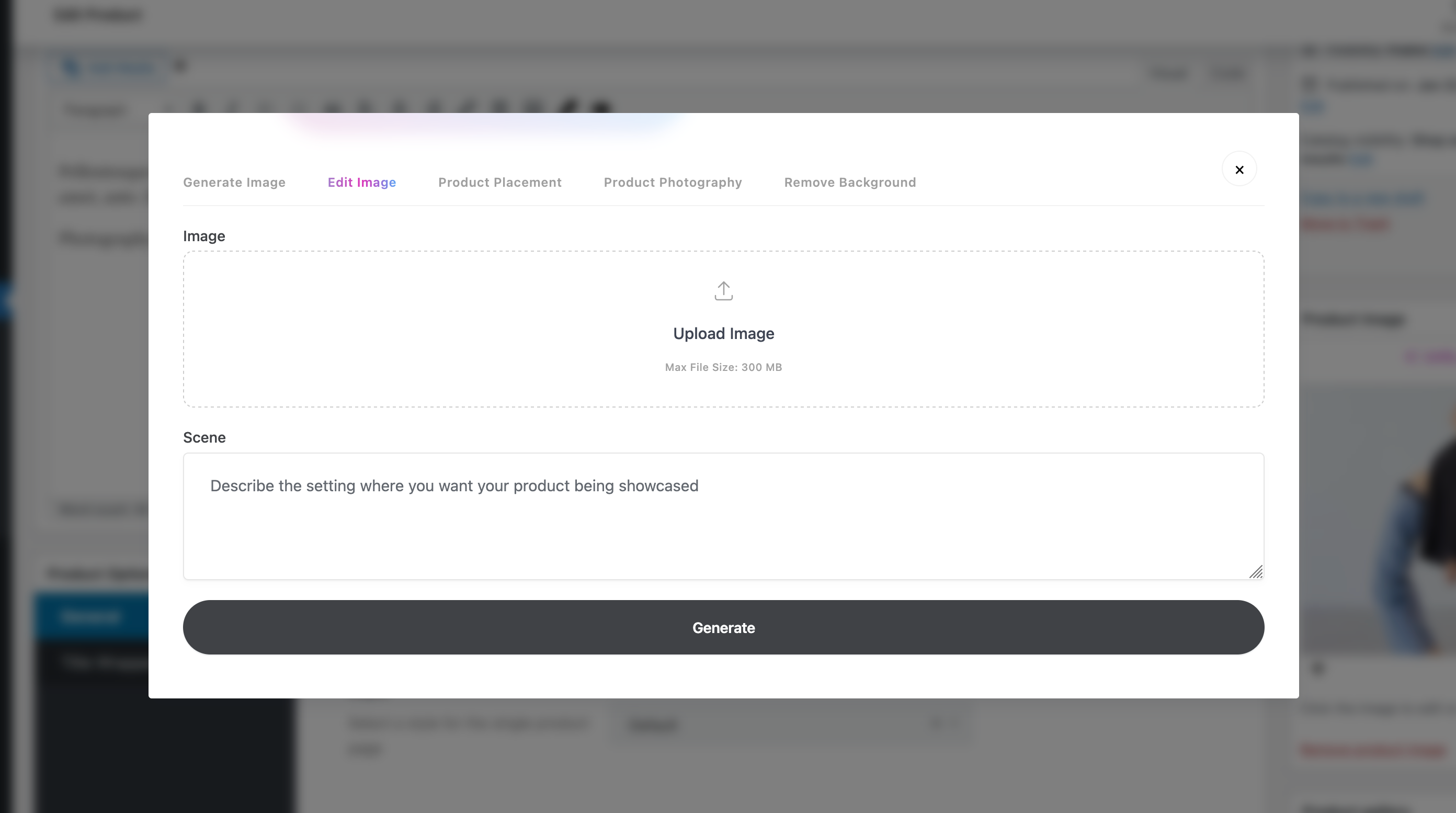
Image Modal
Image modal functionality enables users to generate visuals using AI, update existing posts, and even merge multiple visuals to create a new composite image.
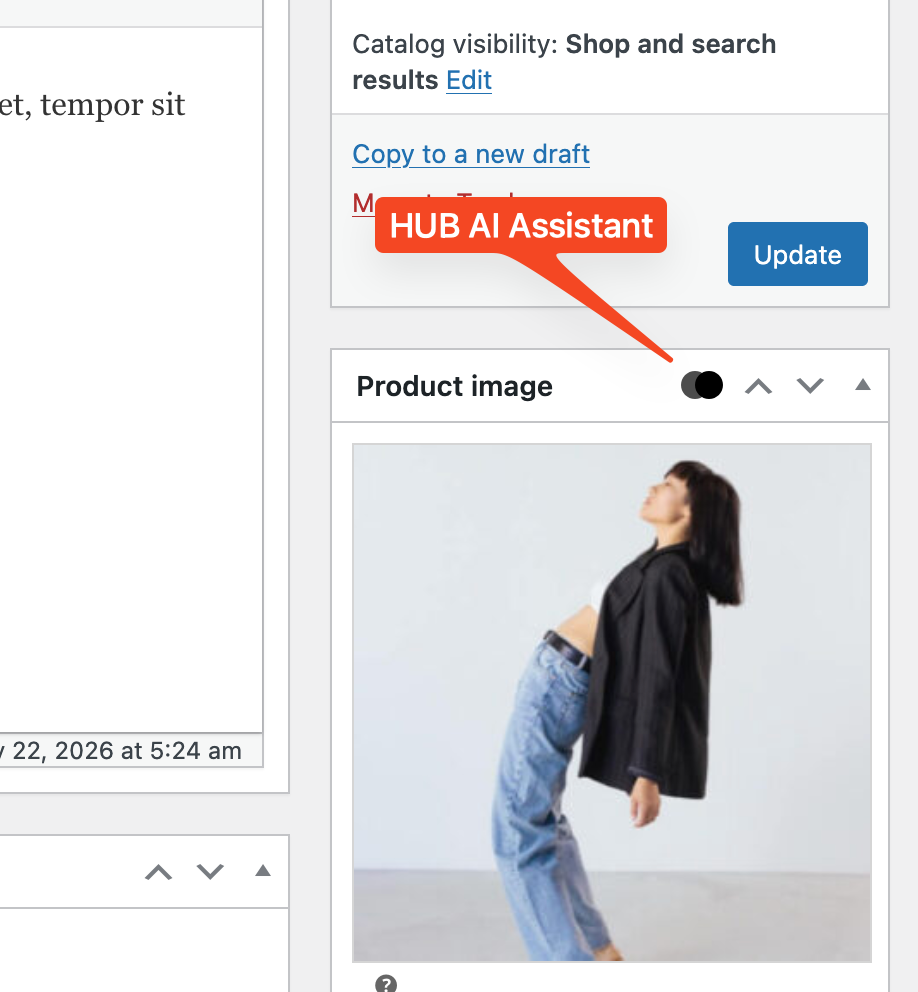
Classic Editor
One can utilize AI features by selecting the HUB AI button in the featured image section for Posts and Products.
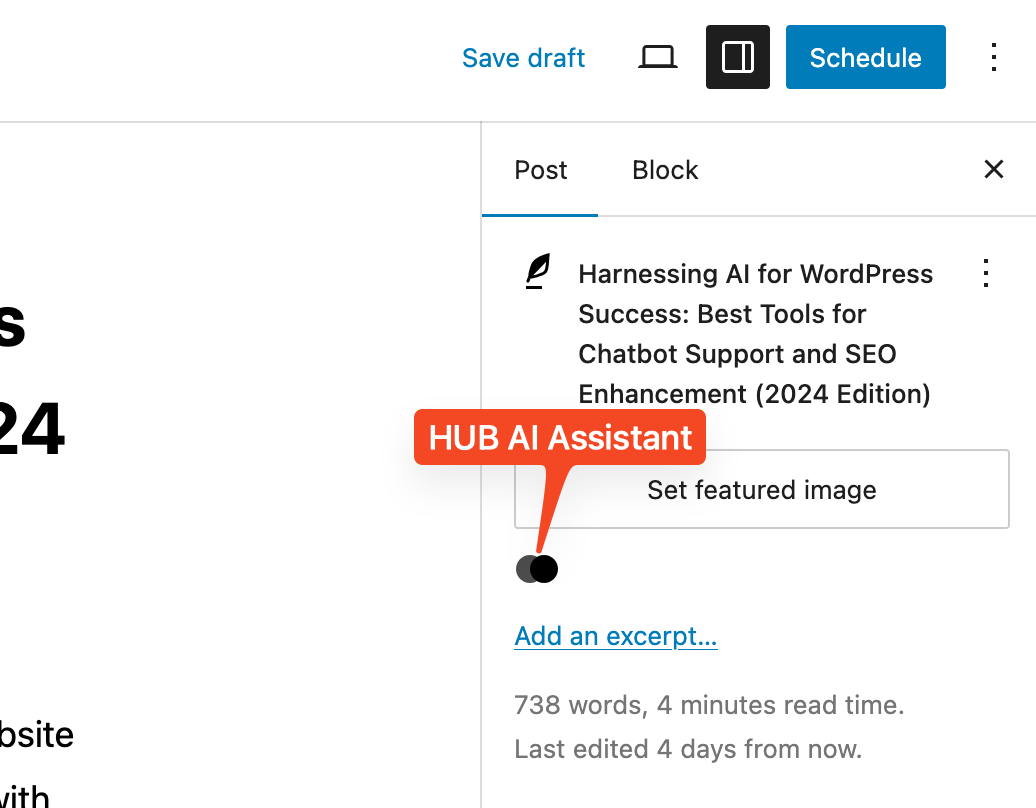
Block Editor
Users can leverage AI features by clicking the HUB AI button in the featured image section of Block Editor Settings.
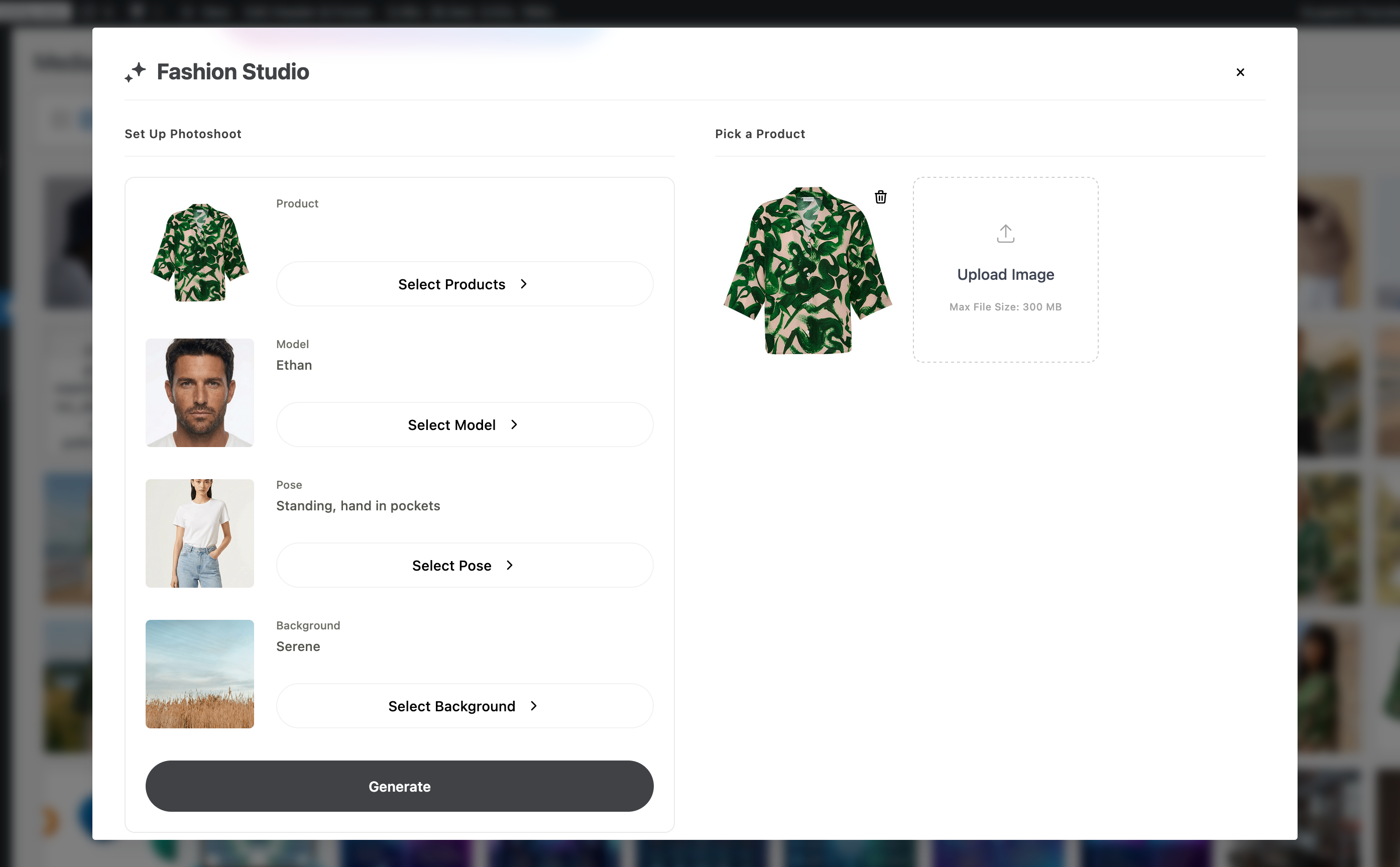
Fashion Studio Modal
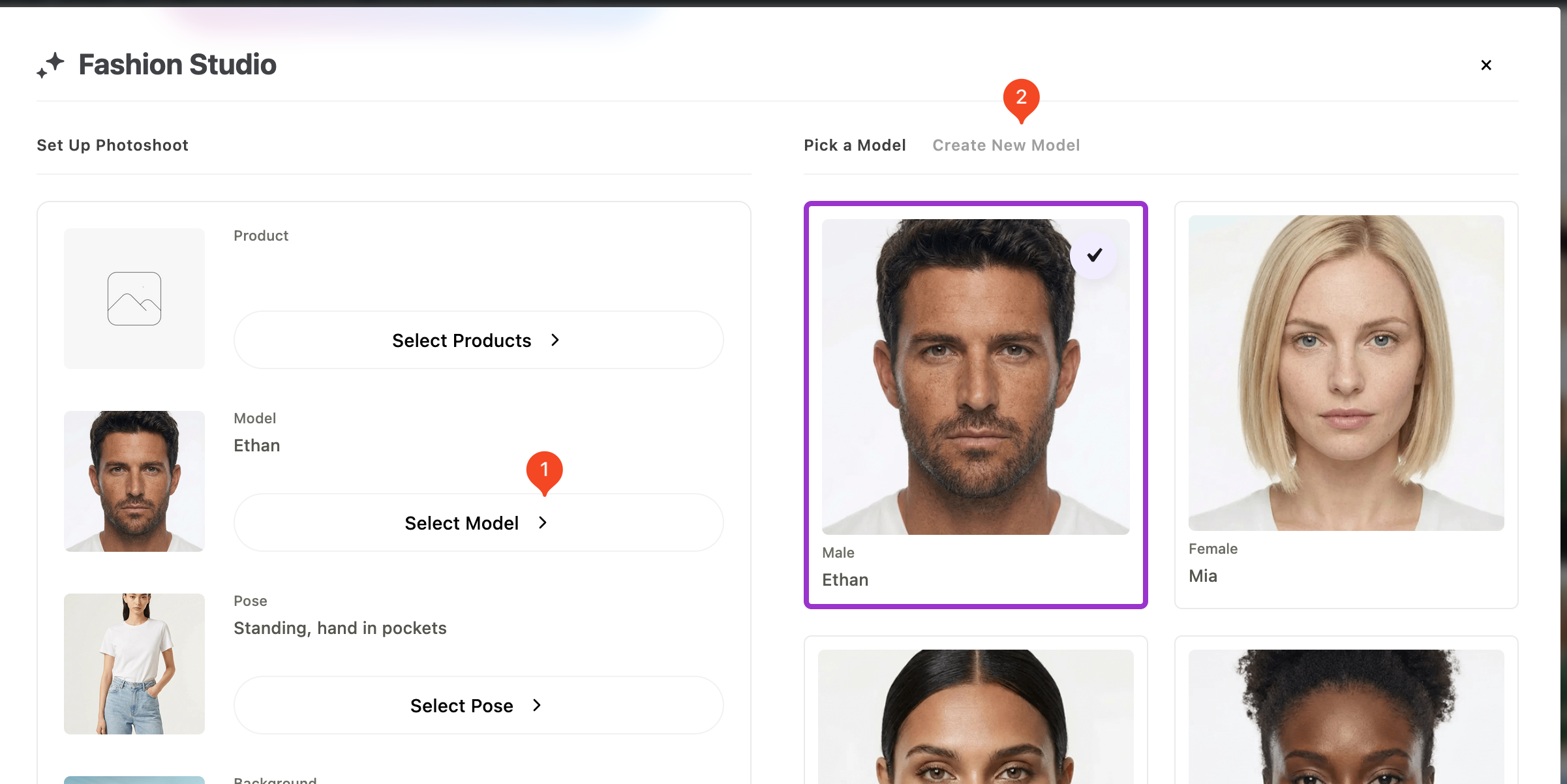
The fashion studio feature has been designed specifically for products. It enables the creation of new visuals based on the product, model, pose, and location of your choice.
Usage Example
-
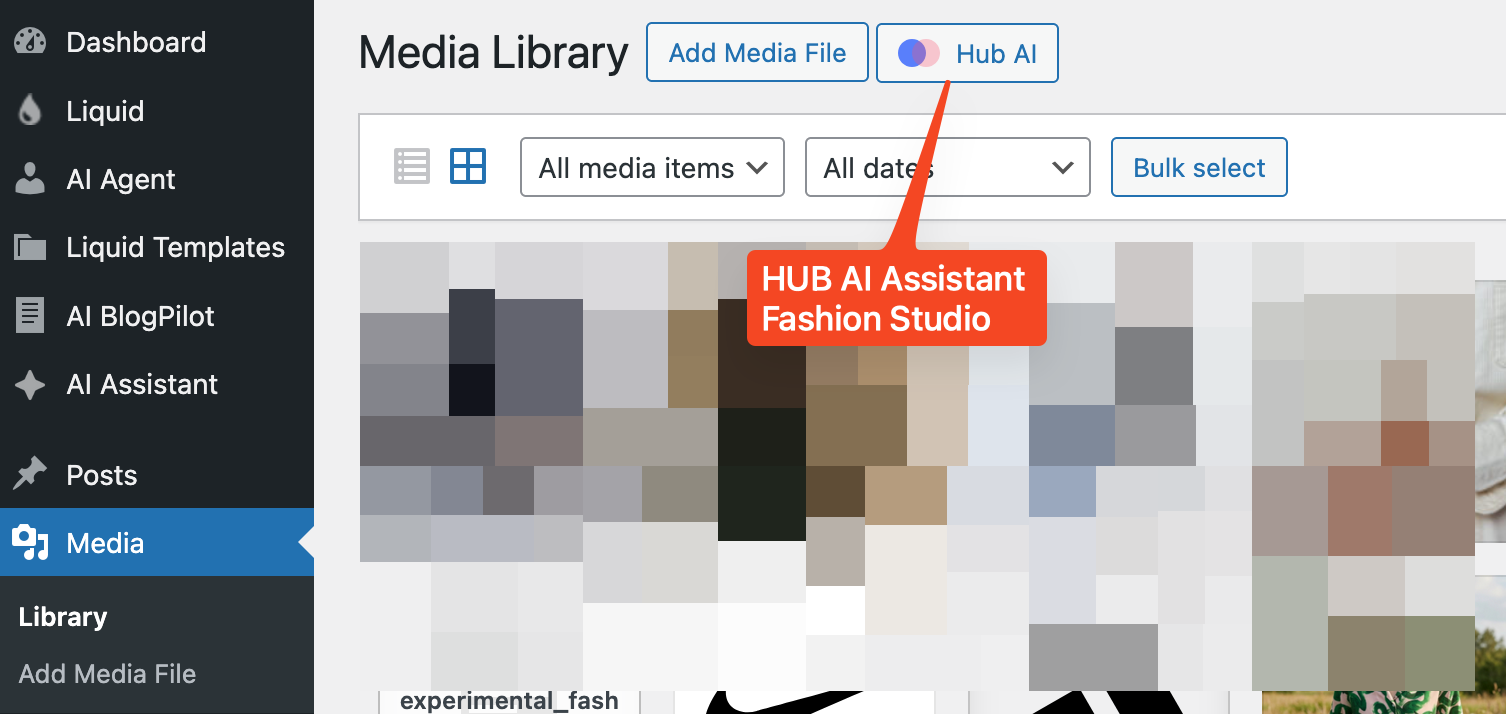
Access the WP Dashboard, then go to Media and click on the HUB AI button.
-
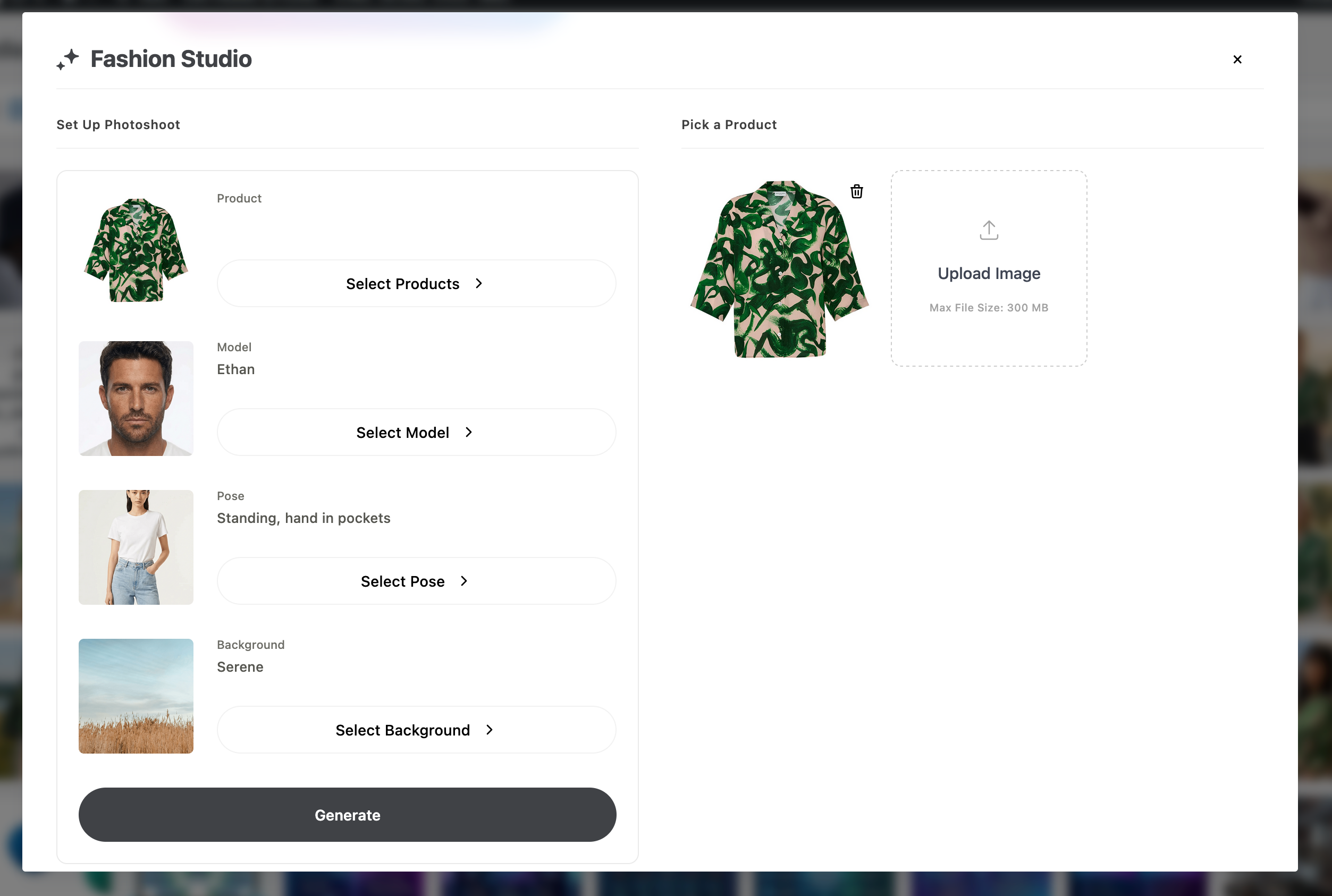
Please choose the product image, model, pose, and background. Then click on "Generate."
-
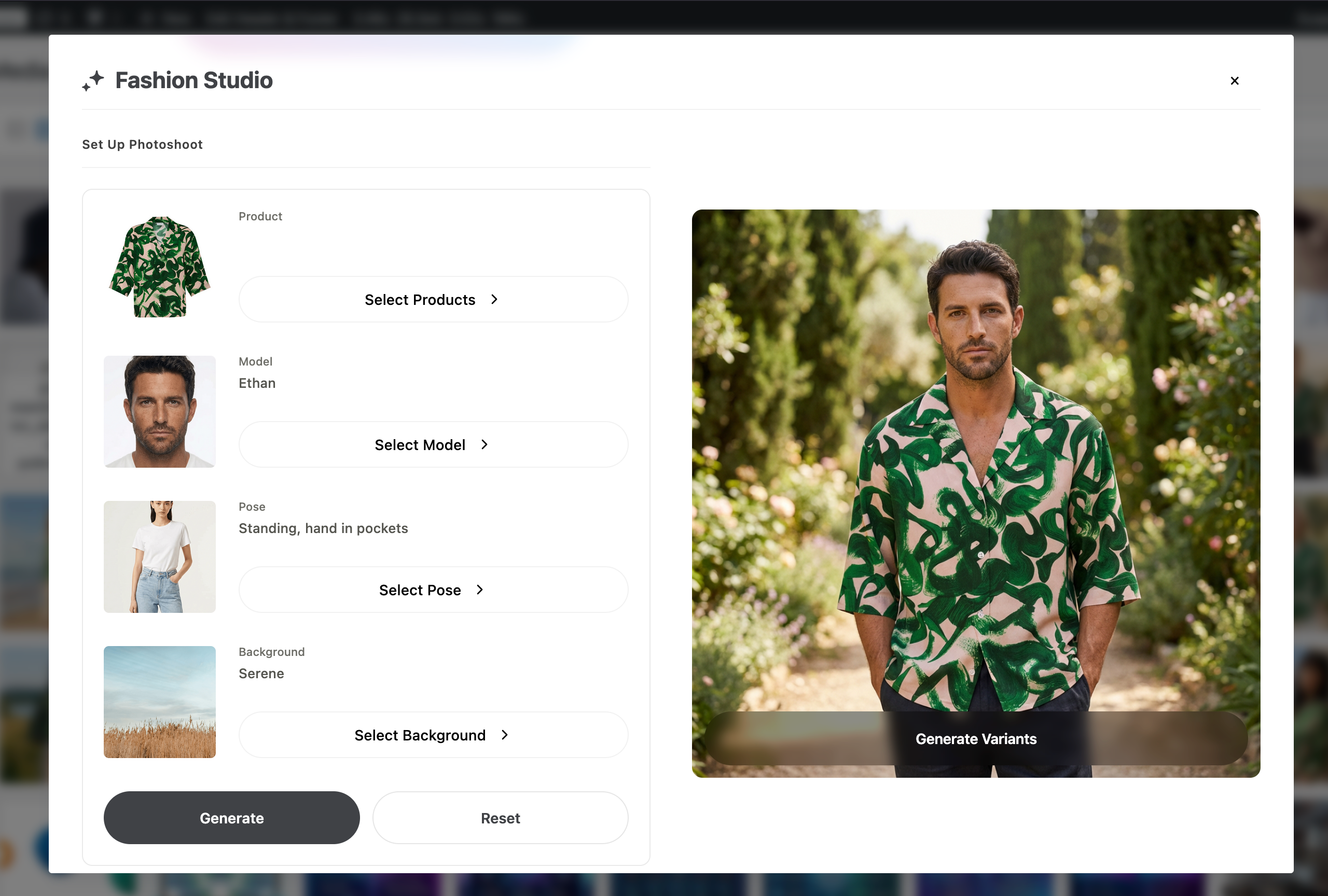
After completing the process, the media files are automatically saved to your WP media library. You can regenerate more images or reset your settings and create from scratch.
Custom Options
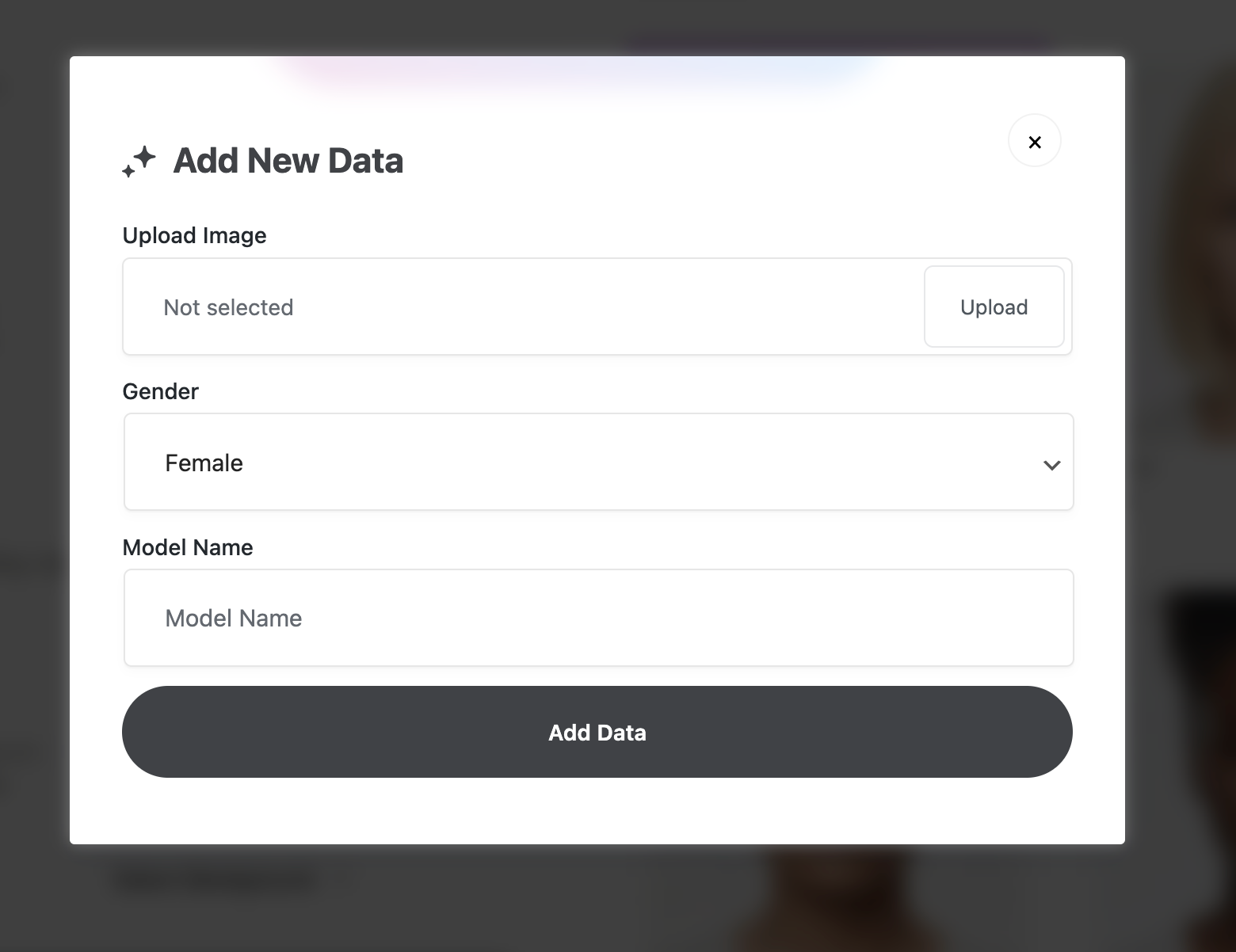
The Fashion Studio allows you to create your custom model, pose, and background. Simply follow these steps: