
Hub Elementor - Product Variation Swatches (WooCommerce)
Product Variation Swatches let you display WooCommerce variations as styled swatches instead of a plain select dropdown. You can use swatches on single product pages and product list/archive pages.
Steps
1) Create a swatch attribute and its terms
-
In the WordPress dashboard, go to Products > Attributes.
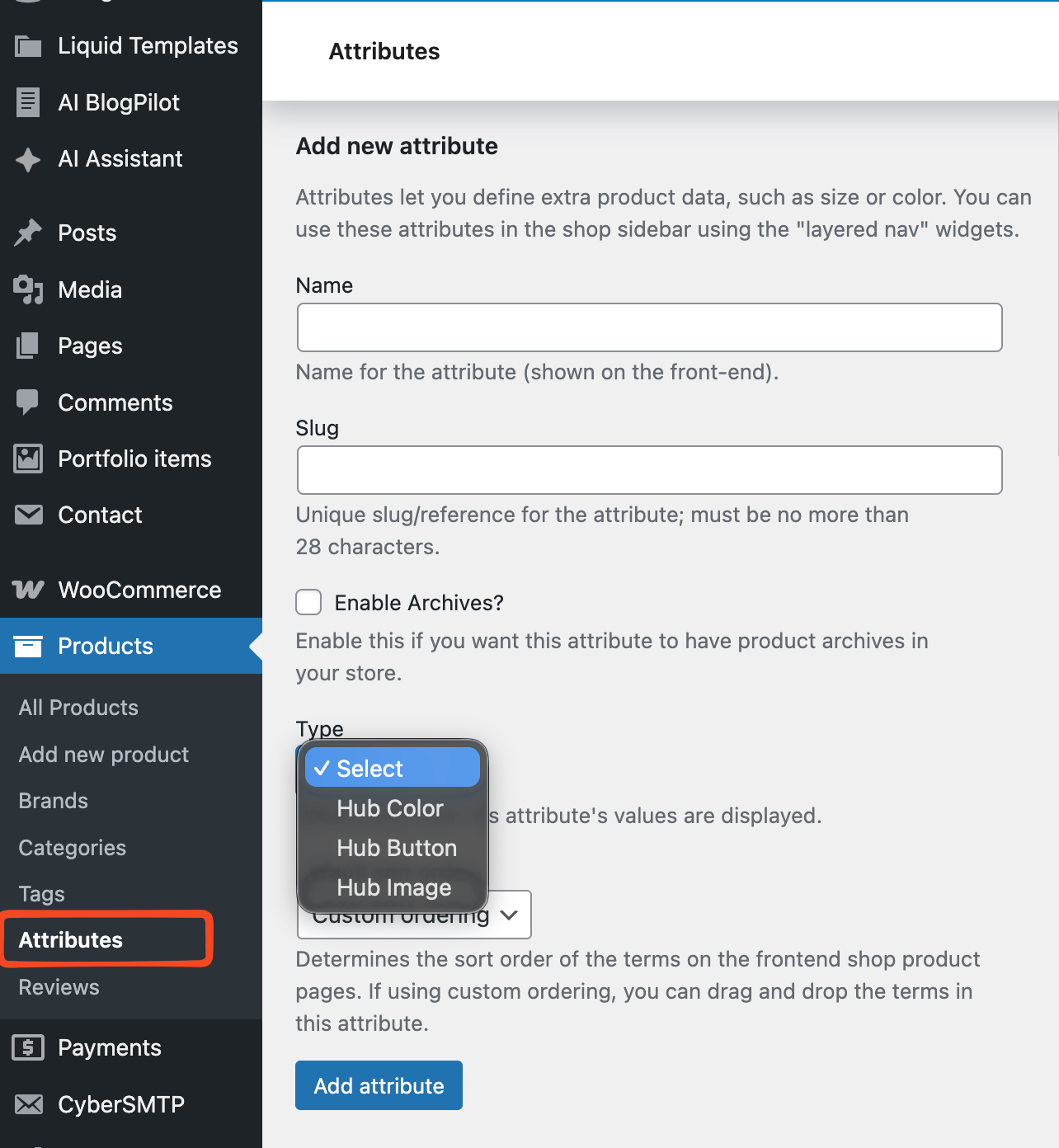
- Create a new attribute and set Type to Hub Color, Hub Button, or Hub Image.
-
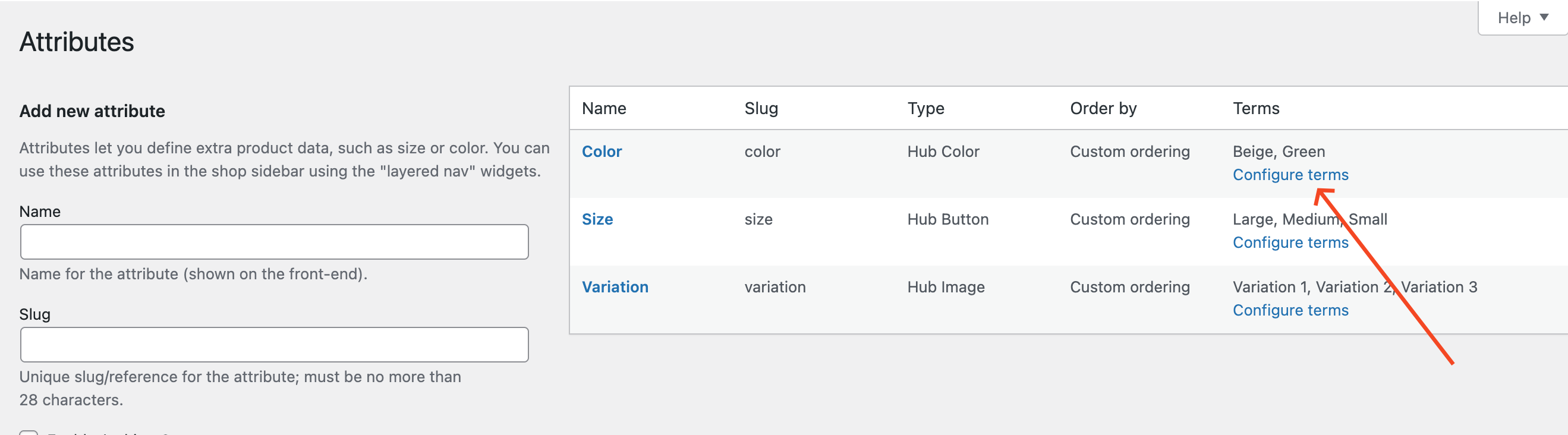
Click Configure terms under the attribute.
-
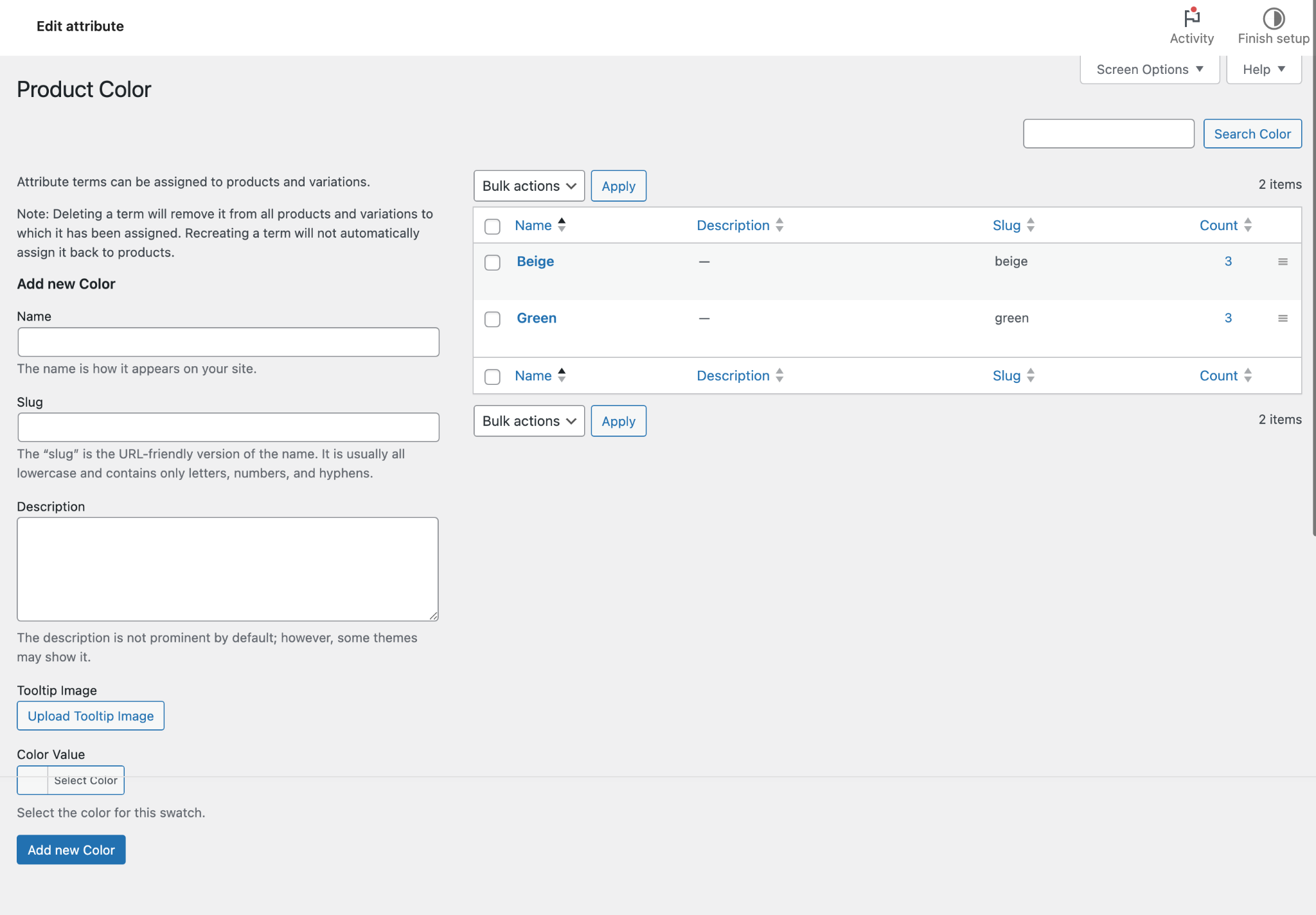
Add new terms and fill the fields based on your selected type (color requires a color value, image requires an image, button uses the term name).
2) Add the attribute to a variable product and generate variations
- Go to Products > All Products and edit the product.
-
In Product data, set Product type to Variable product.
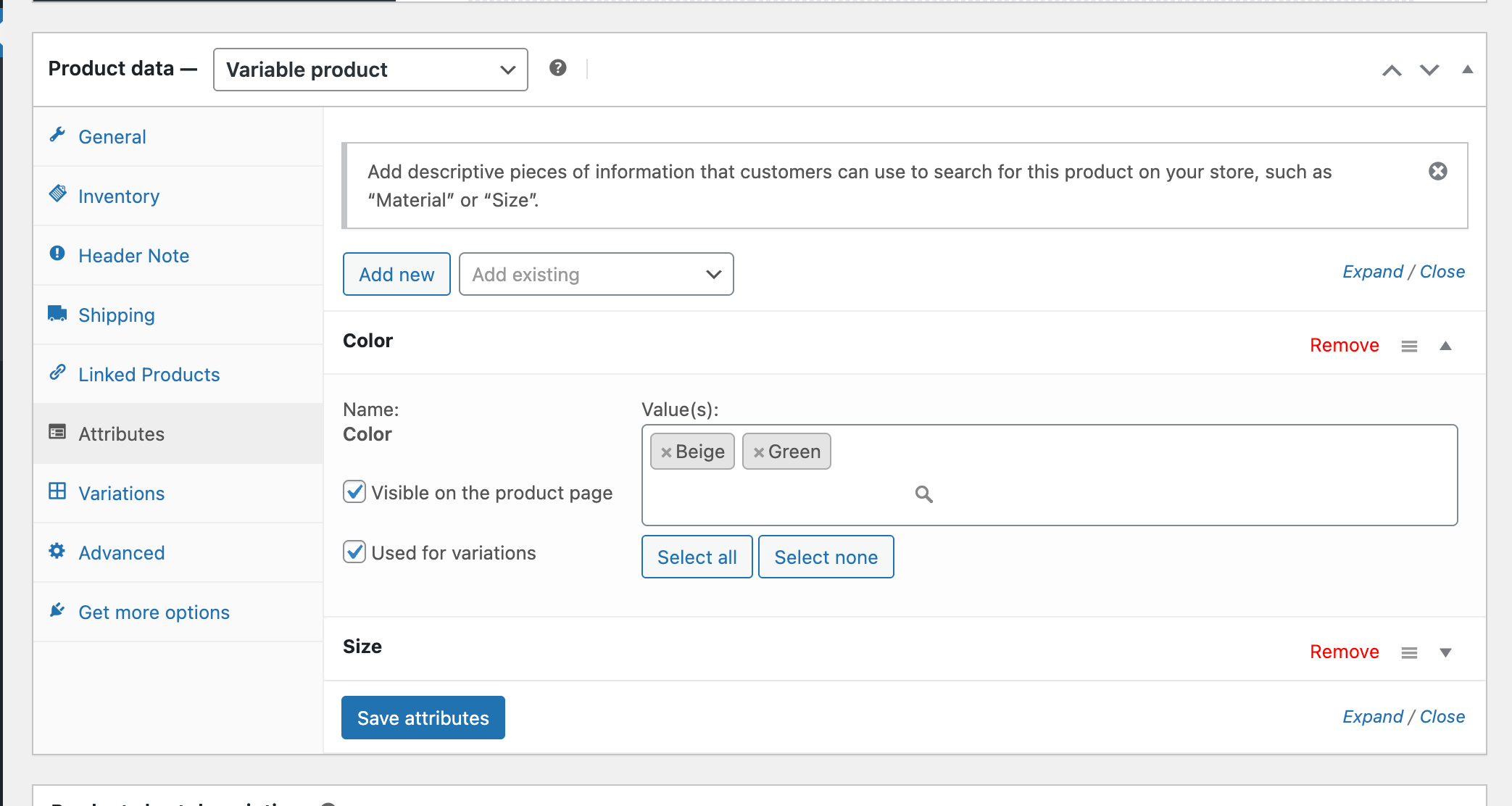
- Open the Attributes tab and use Add existing to add your attribute.
- Select the terms, enable Used for variations, and click Save attributes.
-
Open the Variations tab, click Generate variations, then enter prices for the generated variations.
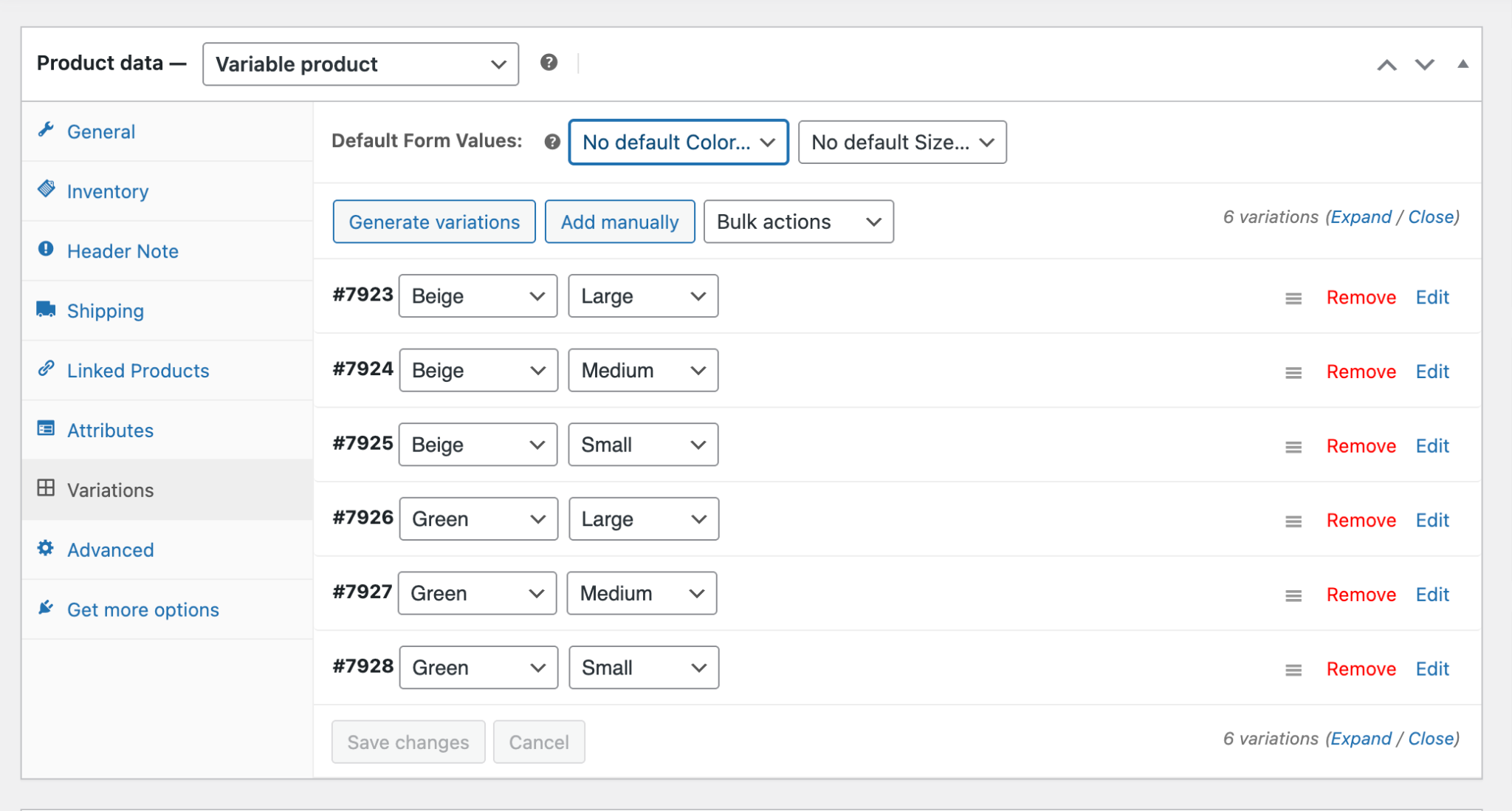
- Update the product.
3) Enable swatches in Theme Options
-
Go to Theme Options > WooCommerce > Variation Swatches.
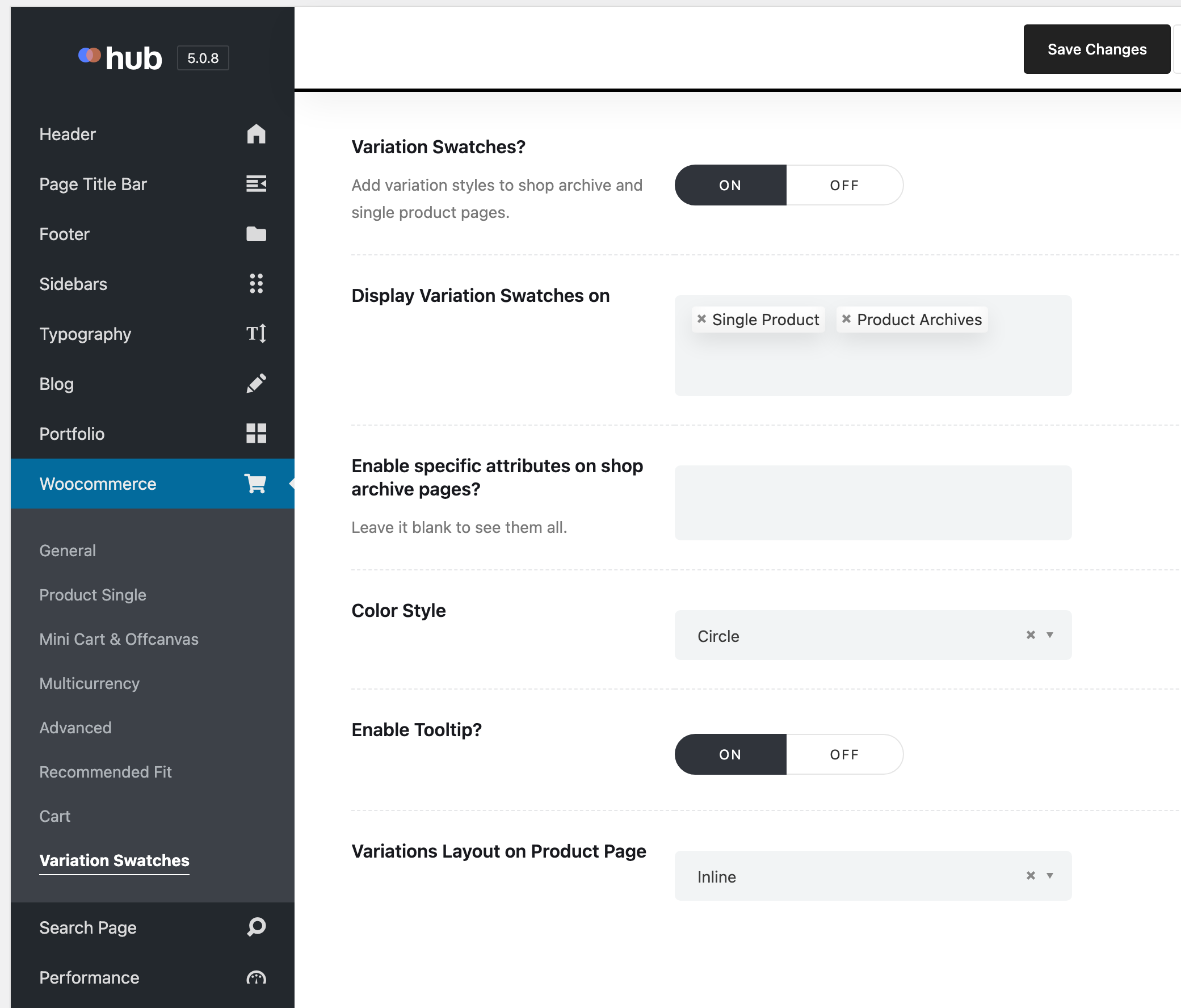
- Enable Variation Swatches, adjust the options as needed, and click Save Changes.
Result
Your product variations display as color swatches, buttons, or images instead of dropdowns on product pages and supported archive pages.


Troubleshooting
-
Conflict with YITH Variation Swatches:
If you use the YITH Variation Swatches plugin, disable Hub Variation Swatches in Theme Options > WooCommerce > Variation Swatches to prevent conflicts.